Steps for Drawing a Container House in 3DS Max
The following steps can be followed to create a container house model in 3DS Max:
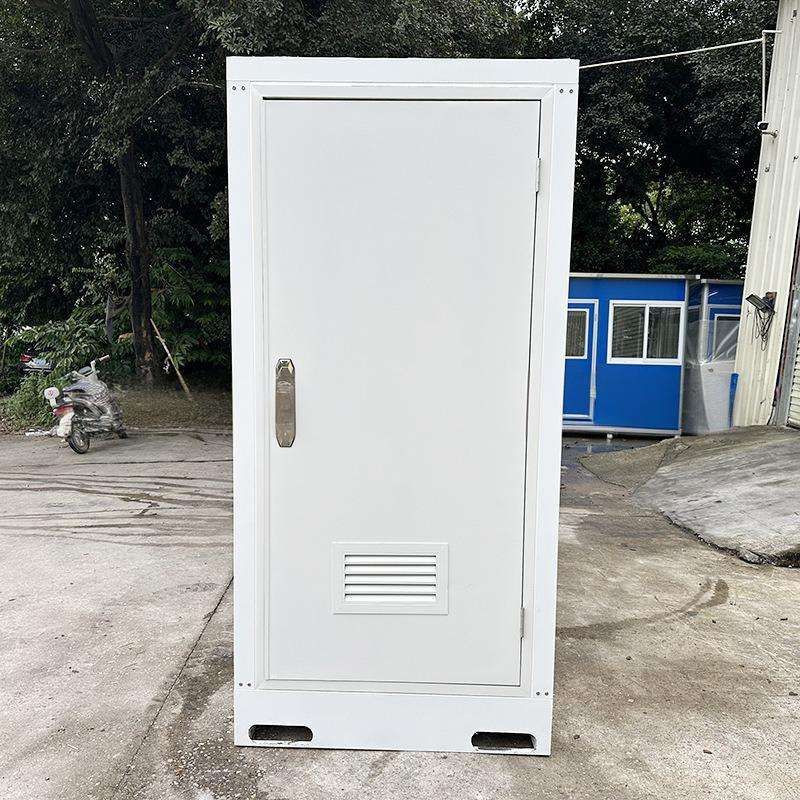
1. Basic Modeling Open the 3DS Max software and first create a cuboid as the main body of the container. Based on the real-world dimensions of a container (e.g., a standard 20-foot container is 6.058 meters long, 2.438 meters wide, and 2.591 meters high), input the corresponding values in the parameter settings to ensure accurate proportions. Generate a second identical cuboid by copying (cloning) the first one as the basis for subsequent modifications. It is recommended to choose the 'Instance' mode when cloning for easy synchronous adjustment of parameters later.
2. Adding the Lattice Modifier Add the Lattice Modifier to the cloned cuboid. This is a crucial step for generating the metal frame structure. When adjusting the parameters, note the following:
- Segment Count: Set this according to the density of the container frame. Usually, the longitudinal segment count is consistent with the length segmentation of the container, and the transverse segment count corresponds to the structure in the width direction.
- Frame Thickness: Control the thickness of the frame by adjusting the 'Strut Radius' and 'Joint Radius' to simulate the corner posts and crossbeams of a real container.
- Struts Only from Vertices: Checking this option prevents redundant structures inside the frame, making the model cleaner. The parameters need to be tested repeatedly to avoid the frame being too dense, causing rendering lag, or too sparse, losing realism.
3. Creating Side Stripes Containers usually have reinforcing rib structures on their sides, which can be simulated through the following steps:
- Create a thin and long cuboid as a single stripe, with its width and height referring to the dimensions of the real container's reinforcing ribs (e.g., width 0.1 meters, height 0.2 meters).
- Use the Array Tool to copy it into a row and cover the side of the container's main body. Adjust the 'Count' parameter to control the number of stripes and set the spacing through the 'Offset' value.
- Align the stripes with the container's main body to ensure accurate positioning. For a more refined effect, adjust the length or curvature of each stripe individually.
4. Handling the Door Structure If you need to depict the container door, make local modifications to the main body using the Edit Poly tool:
- Switch to the 'Edge' sub-object level and use the 'Cut' tool to cut out a rectangular area on the side of the main body as the location of the door.
- Add hinge details: Create small cylinders to simulate hinges and attach them to the edge of the door frame using the 'Align' tool.
- Some models may omit the explicit structure of the door. In this case, simplify the handling by only retaining the door frame outline or distinguishing it through materials.
Precautions
- Proportional Accuracy: Refer to the real-world dimensions of containers before modeling to avoid model distortion.
- Enhancing Realism with Materials: Add metal textures (such as aluminum or rusted steel plates) and rust effects during the material stage. Simulate surface textures through 'Bump' or 'Displacement' maps.
- Optimizing the Model: After completing the basic modeling, merge duplicate objects or delete hidden faces to reduce the number of faces and improve rendering efficiency.