Back to blog
Article
3D Max Container House
Admin September 15, 2026
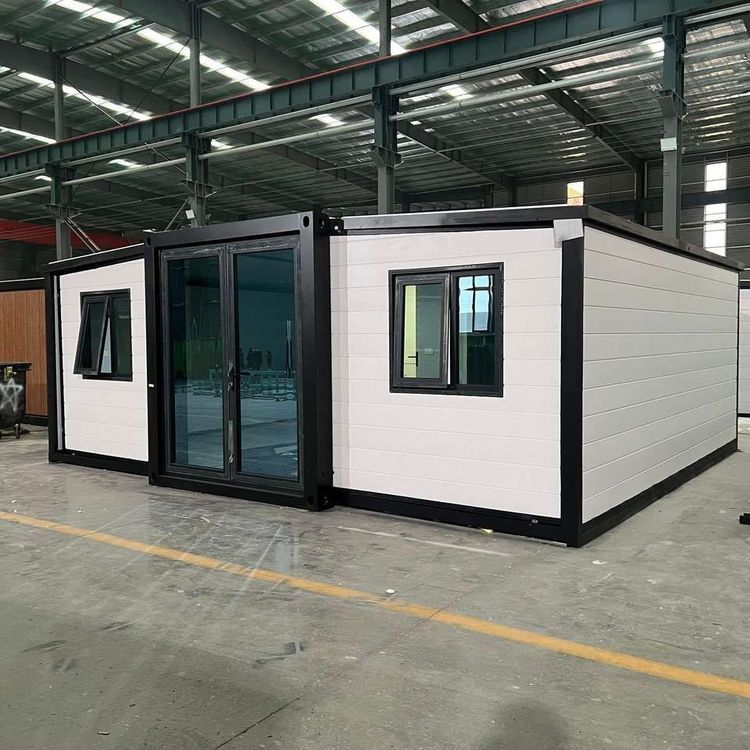
Creating a container house model in 3D Max requires the comprehensive use of modeling, material, lighting, and other tools, combined with the structural characteristics of container houses for design. Here are the specific steps and key points:

1. Modeling Phase
- Basic Structure Construction: Use the 'Box' tool to create the main body of the container house. Adjust the parameters according to standard dimensions (e.g., a 20-foot container: length 6.058 meters, width 2.438 meters, height 2.591 meters). Refine the edges using the 'Editable Poly' modifier, adding chamfers or welding vertices to enhance structural authenticity.
- Detail Processing: Utilize the 'Boolean' tool to cut openings for doors and windows, or create decorative structures like door frames and window frames through 'Spline Extrusion'. For example, add a 'Shell' modifier to the door to increase its thickness, and use the 'Bridge' tool to connect the edges of the openings for a smooth transition.
- Modular Design: If combining multiple containers is required, first complete a single model, then duplicate and adjust its position using the 'Array' or 'Clone' tool. Finally, use the 'Align' tool to ensure precise fitting at the connection points.
2. Materials and Textures
- Material Assignment: Assign a metallic material (such as rusted steel plate) to the main body of the container house. Adjust the base color through 'Diffuse Color' and add a 'Reflection' channel to simulate metallic luster. For interior walls, materials like gypsum board or wood can be used, with 'Bump' maps to enhance surface texture.
- UVW Mapping: For complex structures (such as corrugated steel plates), use the 'UVW Unwrap' modifier to manually adjust the texture coordinates to avoid stretching or misalignment. For example, add a 'Displacement' modifier to the roof tiles and control the bump height through a black-and-white map.
3. Lighting and Rendering
- Lighting Setup: Use 'Target Directional Light' to simulate sunlight, adjusting the 'Shadow Type' to 'Ray-Traced Shadows' for clear projections. Supplement with 'Omni Light' or 'Area Light' indoors, controlling the illumination range through the 'Attenuation' parameter to create a sense of hierarchy.
- Rendering Optimization: Use renderers like 'V-Ray' or 'Corona', enabling 'Global Illumination' to enhance environmental realism. Adjust the 'Anti-Aliasing' parameter to reduce jagged edges, and set the output resolution to 3000×2000 pixels or higher to meet printing requirements.
4. Scene Integration and Post-Production
- Environmental Matching: Import 3D models of trees, people, etc., to enrich the scene, and use the 'Scatter' tool to place greenery in batches. Adjust the camera angle (such as a low-angle upward shot) to highlight the industrial feel of the container house.
- Post-Production: Overlay lens flares and adjust the color temperature (such as adding warm tones to simulate a sunset effect) in Photoshop, and finally output the image in PNG or TIFF format.
Reference Resources:
- Model Library: Liuyun Library (ID AJI8652856) provides 3D container models with textures and lighting, which can be directly imported and modified.
- Tutorial: Bilibili's '3DMAX2024 Complete Tutorial' covers detailed operations from basic tools to complete case studies.