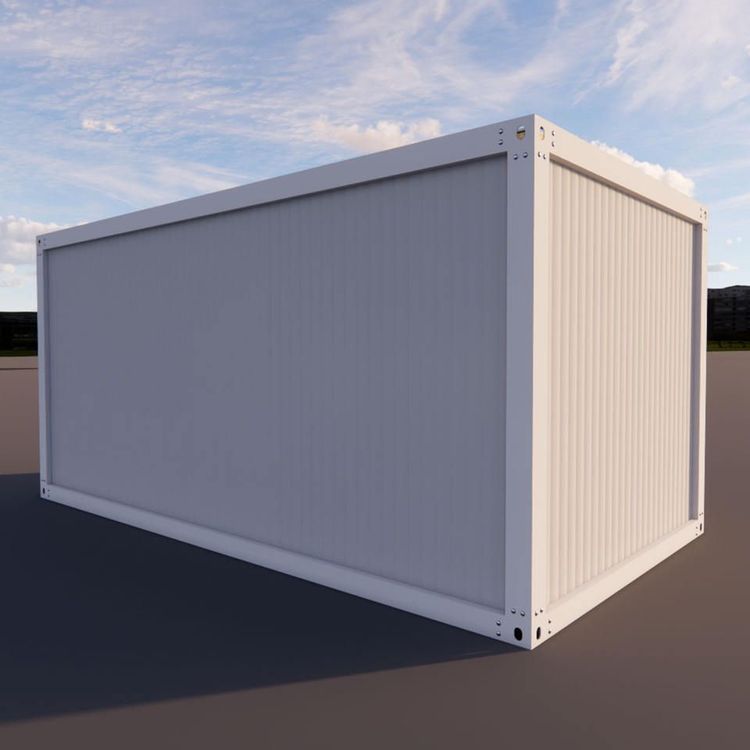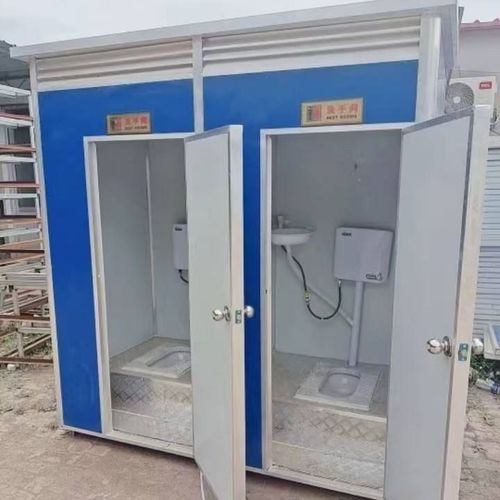
Mobile Toilet P-Image Tutorial
For the mobile toilet P-image tutorial, you can refer to the following general photo editing ideas, combining toilet, material refinement, and watermark processing techniques to complete:
I. Basic Adjustments and Composition Optimization
Image Correction
Use Photoshop's 'Free Transform' tool (Ctrl+T) to adjust the perspective angle of the mobile toilet, ensuring that the vertical lines in the image are parallel and avoiding a tilted appearance. If the shooting environment is cluttered, use the 'Crop Tool' to recompose the image and highlight the main subject.Light and Shadow Unification
If the mobile toilet is unevenly lit (e.g., one side is too bright), duplicate the background layer and overlay it using the 'Soft Light' blending mode, reducing the opacity to 20%-30% to balance the overall brightness. For overly dark shadow areas, use the 'Brush Tool' (choose a light gray color with 10% opacity) to gently paint and brighten them.
II. Material and Detail Refinement
Metal/Plastic Component Processing
Refer to the refinement method for toilet brushes:- Desaturation and Base Color Filling: Use the 'Hue/Saturation' tool (Ctrl+U) to reduce the saturation of the metal rod to 0, then add a cool tone (e.g., +10 blue) through 'Color Balance'; for plastic parts, cover them with a light gray 'Solid Color Fill Layer' (RGB: 220, 220, 220).
- Highlight and Edge Enhancement: Create a new layer and use a white brush (0% hardness, 15% opacity) to paint along the metal edges, changing the layer blending mode to 'Overlay'; for plastic parts, use the 'Inner Glow' layer style (choose white color, size 3 pixels) to simulate a reflective effect.
Stain and Scratch Repair
Use the 'Healing Brush Tool' (J) to sample clean areas by holding down the Alt key and cover the stains; for stubborn scratches, use the 'Clone Stamp Tool' (S) to adjust the brush hardness to 50% and repair them point by point. If the surface of the mobile toilet has reflections, use the 'Curves' tool (Ctrl+M) to darken the highlight areas and reduce visual interference.
III. Watermark and Background Processing
Small-Area Watermark Removal
Refer to the method for removing watermarks from toilet photos:- Use Snapseed's 'Healing Tool' to paint over the watermark, performing the operation 2-3 times to avoid blurred edges; if the watermark is on a complex texture (e.g., a wooden background), switch to Photoshop's 'Content-Aware Fill' (Shift+F5), check 'Color Adaptation', and confirm.
- For residual traces, use the 'Mixer Brush Tool' (B) to sample surrounding colors and gently brush over them, controlling the hardness below 10%.
Background Replacement or Blurring
If you need to highlight the mobile toilet, use the 'Quick Selection Tool' (W) to select the main subject, right-click and choose 'Select and Mask' to optimize the edges, then inversely select and fill with a new background (e.g., a solid color or a blurred version of the original image); or use 'Gaussian Blur' (radius 5-10 pixels) to blur the background and enhance the focus on the main subject.
IV. Final Color Grading and Output
Color Unification
Add a 'Color Lookup' adjustment layer (choose 'Crisp_Warm' for the 3DLUT) and reduce the opacity to 15% to enhance the image quality; use the 'Selective Color' tool to slightly adjust the white parts (cyan -5%, yellow +3%) to avoid an overly white and unrealistic appearance.Sharpening and Saving
After merging the layers, apply 'Filter-Sharpen-Unsharp Mask' (amount 50%, radius 1 pixel) to enhance the details; save as PNG format (transparent background) or JPEG (quality 90%) to ensure clarity.