Back to blog
Article
SU Container House Modeling
Admin September 15, 2026
Container house modeling can be achieved using SketchUp software, combining the characteristics of container architecture with SU model resources for efficient design.

I. Characteristics of Container Architecture and Modeling Basics
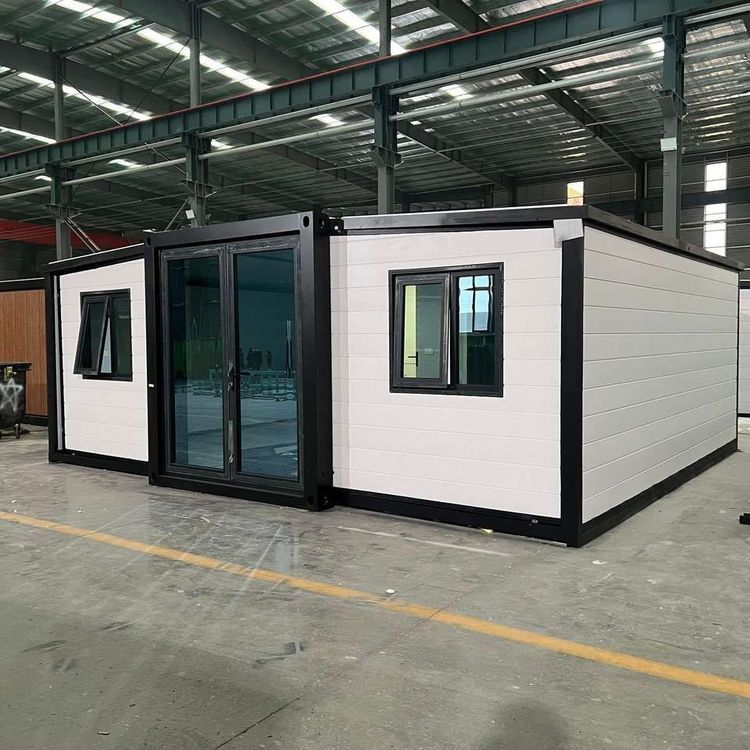
Container architecture uses standardized steel containers as its core material, offering advantages such as modularity, mobility, and low cost. Its construction method is similar to "building blocks," forming an overall space by cutting, welding, and combining multiple containers, and then completing the functionality through interior decoration and facility installation. When modeling, it is essential to highlight its structural characteristics:
- Modular Combination: Containers usually come in standard sizes (e.g., 20 feet, 40 feet) as units. When modeling, you can first draw a single container model and then combine it into complex structures through copying, rotating, and stacking.
- Structural Modification: In actual projects, it is often necessary to open up container walls, add doors and windows, or connect steel beams. When modeling, use SketchUp's "Push/Pull" and "Erase Surface" tools to simulate cutting and welding effects.
- Materials and Details: The surface of containers is mostly coated with anti-corrosion coatings, and metal materials can be assigned during modeling; interior details such as insulation boards and fireproof boards need to be added, which can be achieved through component libraries or custom materials.
II. SketchUp Modeling Process and Techniques
- Basic Modeling:
- Use the "Rectangle" tool to draw the base of the container and generate a three-dimensional block with the "Push/Pull" tool.
- Use the "offset" tool to create the thickness of the container walls (usually 1-2mm) and then adjust the height to the standard size (e.g., 2.6m high) with the "Push/Pull" tool.
- Mark the positions of doors and windows, use the "Erase Surface" tool to create openings, and supplement the door and window frames with the "line" tool.
- Combination and Modification:
- Copy the single container model and combine it into multi-layer or multi-column structures using the "move" and "rotate" tools.
- Use the "union" or "intersect" commands in the "solid tools" to handle overlapping parts at container connections, simulating welding effects.
- Add steel beams to enhance load-bearing capacity: use the "rectangle" and "Push/Pull" tools to create steel beam models and place them on the top or connections of containers.
- Interior Decoration and Facilities:
- Import pre-designed SU components such as furniture and stairs, or use basic tools for modeling.
- Use the "materials" tool to assign materials such as wood flooring and tiles to interior walls and floors, and add light components to simulate lighting effects.
III. Acquisition and Utilization of SU Model Resources
- Free Model Libraries:
- Resource platforms mentioned in the reference information (such as Hongdong China and 3D66) provide a large number of container SU models that can be directly downloaded and used or modified for details.
- The model format should be
.skp(SketchUp native format) to avoid compatibility issues caused by format conversion.
- Model Adjustment and Optimization:
- Scale the model size according to project requirements or adjust the proportion with the "scale" tool.
- Manage different components (such as structure, decoration, facilities) through the "layer" tool for easy later modification.
IV. Precautions
- Structural Rationality: When modeling, consider the load-bearing limits of containers to avoid excessive modification leading to structural instability.
- Detail Precision: Balance model details with file size according to project requirements, and display complex projects in layers.
- Copyright Compliance: For commercial projects, confirm the authorization type of the model to avoid infringement risks.